


 Apprenticeships
 Construction
 Education Tech
 Engineering
 Franchise Networks
 Healthcare
 Legal Firms
 Logistics
 MATs
MATs Recruitment
 Retail
 Seasonal Staff
FrogLMS Community
Release Date - 14th September 2026
What's new in this release?
Forms
When creating a new form or editing an existing one, there is now a new field called Module Picker available.
The Module Picker field could be used in forms where learners are required to submit evidence of their Continuing Professional Development (CPD) to their manager. For example, learners can select modules that have been allocated to them (these may be modules that are yet to be started, in progress, or completed) that align with objectives set by their manager.
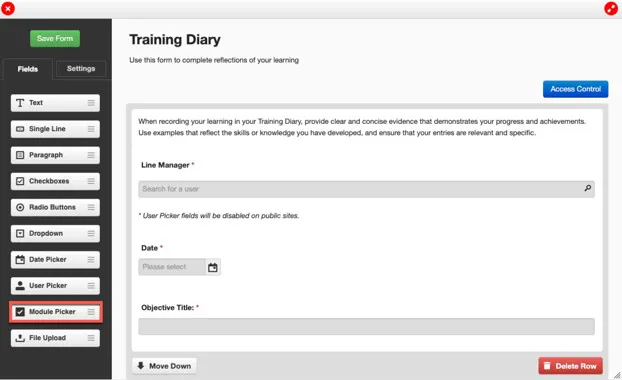
When the Module Picker field is dragged onto the form, all of the standard field configuration options are available, just like any other form field, including:
- Entering a custom name for the field.
- Choosing whether the field is required or hidden.
- Adding a description for the field.
- Choosing who can edit the field (default or custom permissions).
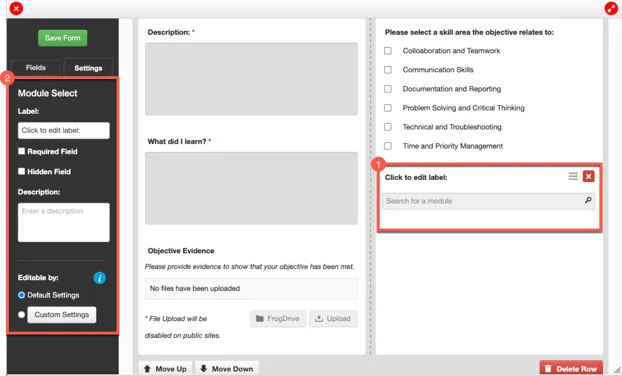
In the example below, we have configured the field and can see that the changes are reflected immediately within the form.
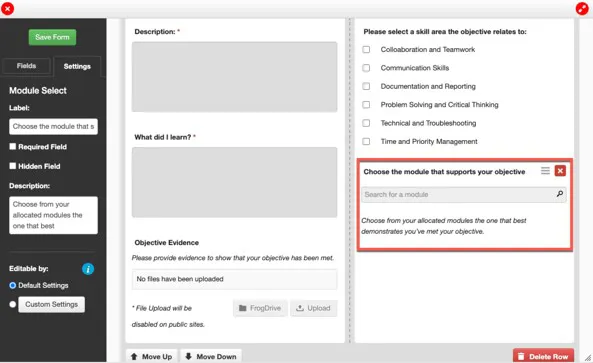
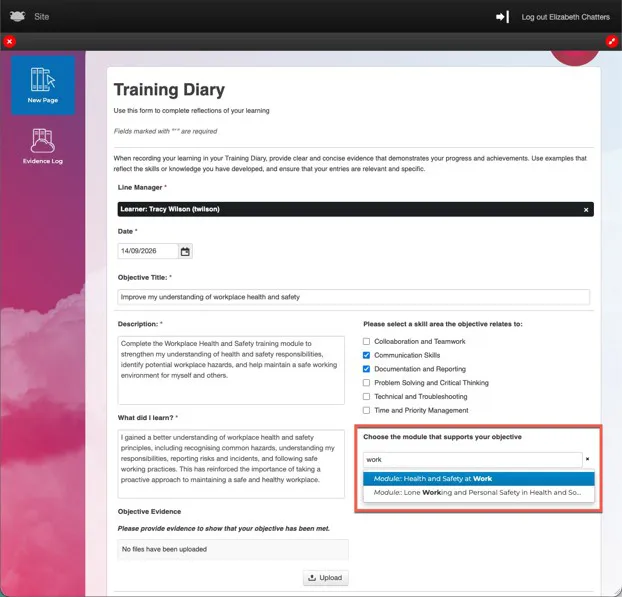
When the form is viewed by a learner, searching for a module (for example, work) it will only return modules that have been allocated to that learner.
Please note that when an administrator views a form containing the Module Picker field, searching for a module will return all modules on the platform, regardless of whether they have been allocated to the administrator.
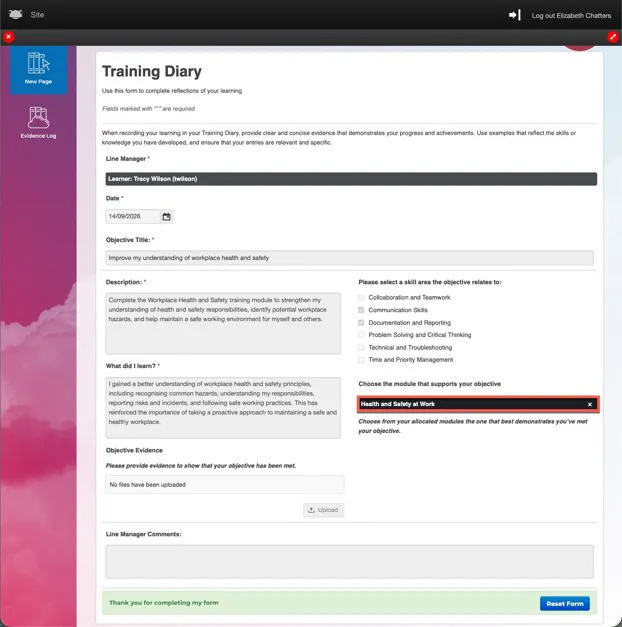
Once a module has been selected, it is saved as part of the learner’s form submission.
Modules
A new Training Form widget has been added for use within modules. This allows administrators to quickly add a survey-style form to the end of a module to gather learner feedback.
The Training Form widget does not support completion or approval settings, so completing the form is always optional for learners.
To add a form to a module, enter edit mode and select the new Training Form widget.
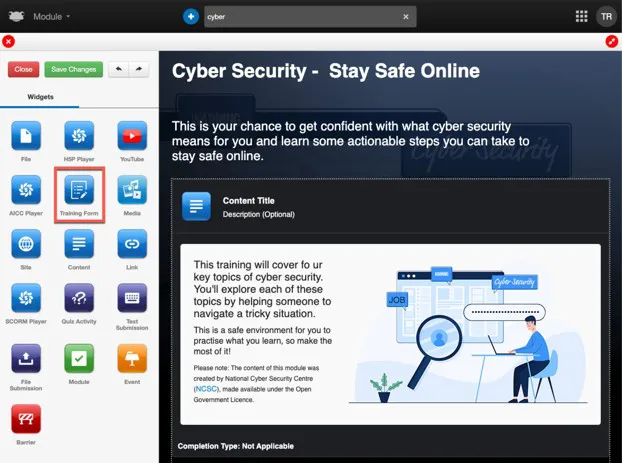
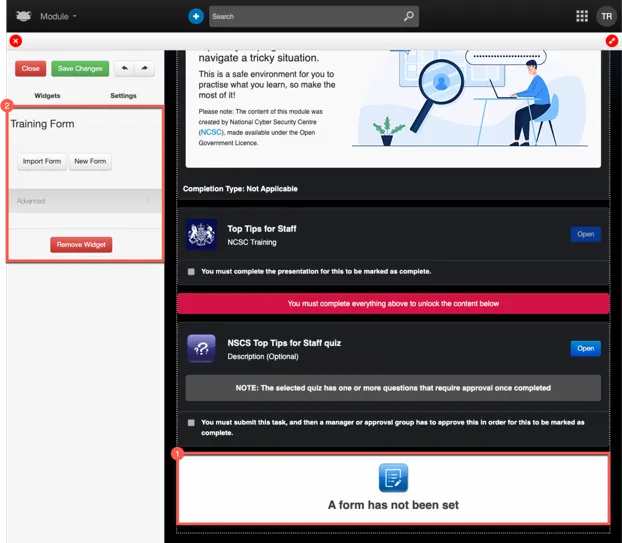
When adding the Training Form widget to your module, you have the same two options available as when adding a form to a site:
- Import Form – Import an existing form that has already been created in FrogDrive.
- New Form – Create a new form for use within the module. Please note that forms created directly within a module are not saved back to FrogDrive and therefore won’t be available for use in other modules.
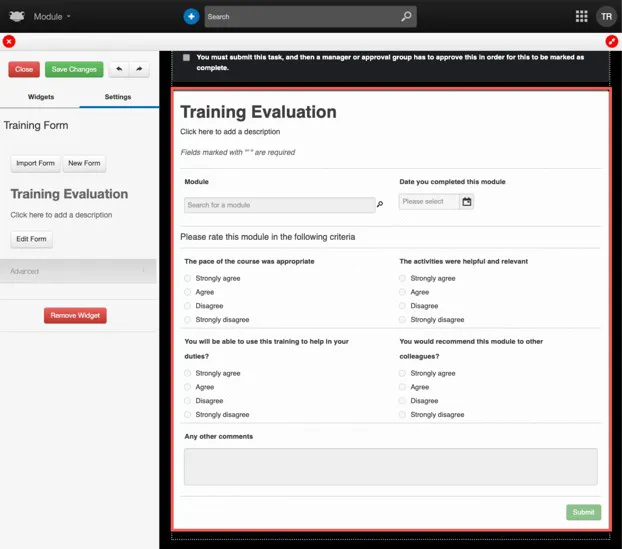
In this example, we’ve chosen the Import Form option and selected a form, Training Evaluation, that had previously been created in FrogDrive. The form is then displayed inline within the module, ready for learners to complete.
When a learner submits their form submission within a module, the responses are only visible to administrators of the LMS platform.
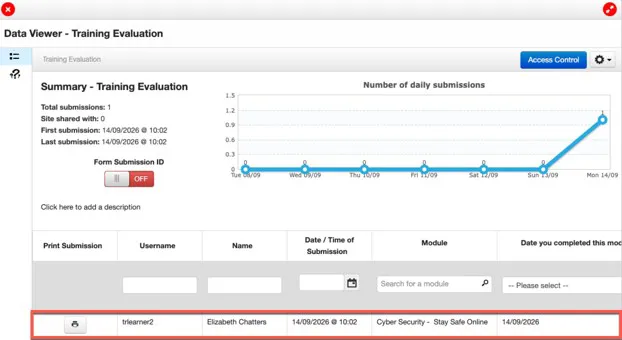
To view the responses, navigate to the module and select Module > Data Viewer.
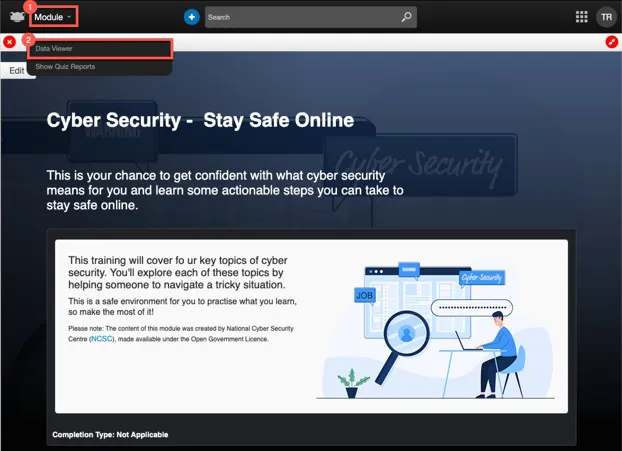
The Data Viewer pop-up window is displayed. From this point onwards, all functionality is the same as when viewing submissions for a form placed on a site.
In this example, we can see the submission made by Elizabeth Chatters for the Training Evaluation form within the module.
Reporting Application
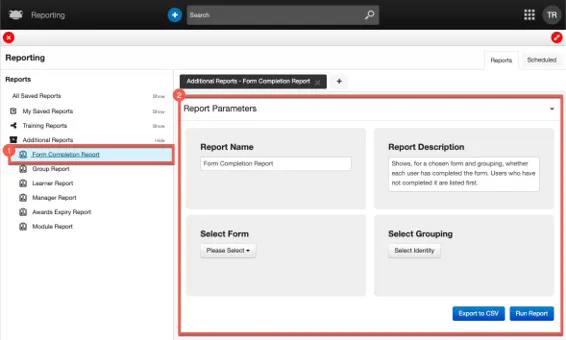
Based on customer feedback, a new report called Form Completion Report has been added to the Additional Reports section.
The report allows you to select a form associated with a site and page, together with a grouping (e.g. an individual user, group, or organisation data), to identify which users have and have not completed a submission for that form.
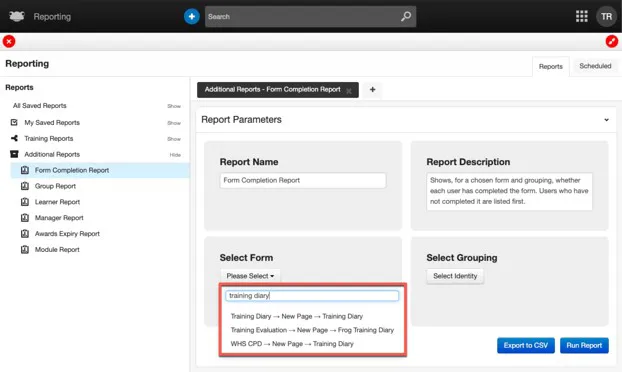
In this example, we have entered Training Diary into the Select Form field to display any matching search results.
Please note that search results are displayed in the following format:
Site Name > Page Name > Form Name
For example, if there is a site called Training Diary containing a page called New Page, with a form called Training Diary, the search result would be displayed as:
Training Diary > New Page > Training Diary
Once the form has been selected, select the group you wish to report on within the Select Grouping field. In this example, we have selected the group Service Desk.
Please note that, as with other reports, the grouping you report on can be any of the following:
- Individual users
- Groups
- Organisation (including Job Title, Department, Location)
- Refined Groups
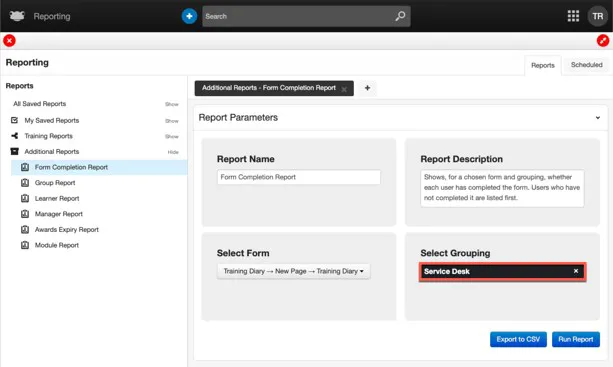
When happy with the details entered select the Run Report button.
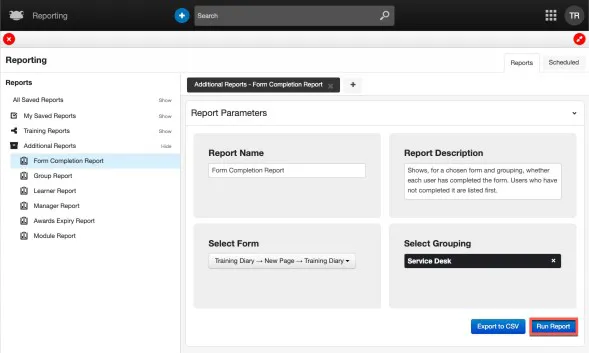
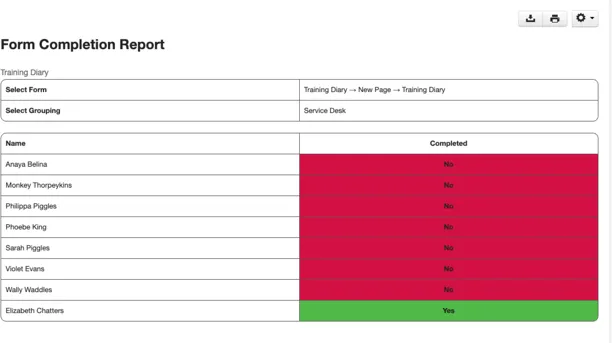
The report is then generated using the selected criteria and lists each user within the selected grouping together with whether they have completed a submission for the selected form. Completed submissions are displayed as Yes with a green highlight, while users who have not completed a submission are displayed as No with a red highlight.
BUG FIXES
This release includes the following bug fixes:
AICC Player Widget
- JIRA# NFC-3646 - Improved the AICC Player widget to provide more robust handling of values between NHS e-Learning for Healthcare (e-LfH) platform and the Frog platform, resulting in more reliable content loading.
Catalogue Widget
- JIRA# NFC-3619 - When using the Catalogue widget on a site, if “Show Toolbar” is enabled, the selected “Sort By” and “Categories” options are now retained for each user. The next time the user navigates to the Catalogue widget, their previously selected options will be displayed.
Data Viewer Widget
- JIRA# NFC-3645 -When the Data Viewer widget is configured with filters, learners with the App > Data Viewer > Export to CSV permission will now export only the submissions they have access to view within the Data Viewer widget.
Event Widget
- JIRA# NFC-3617 - Within the Event widget, sessions can now be created for dates in the past. Please note that, for past sessions, all enrolment and attendance management must be performed by a Frog Administrator.
FrogDrive > SCORM Packages
- JIRA# NFC-3650 - When a SCORM package uploaded to FrogDrive > SCORM Packages has a long file name, selecting the package will now display the full file name within the pop up window. This makes it easier for administrators to distinguish between SCORM packages with similar names.
- NOTE – This enhancement also applies to H5P packages uploaded to FrogDrive > H5P Packages.
Modules
- JIRA# NFC-3621 - Resolved an issue where duplicating a module containing a SCORM Player widget did not retain the associated SCORM content and widget settings. These are now copied correctly to the duplicated module.
My Learning Widget
- JIRA# NFC-3619 - When using the My Learning widget on a site, if “Show Toolbar” is enabled, the selected “Sort By” and “Categories” options are now retained for each user. The next time the user navigates to the My Learning widget, their previously selected options will be displayed.
Quizzes
- JIRA# MEGA-437 / IALTEAM-480 - The “Paste from Word” tool within quiz questions has been enhanced to support tables copied from Microsoft Word or Excel. The table structure and text are retained, although any original formatting is removed when pasted.
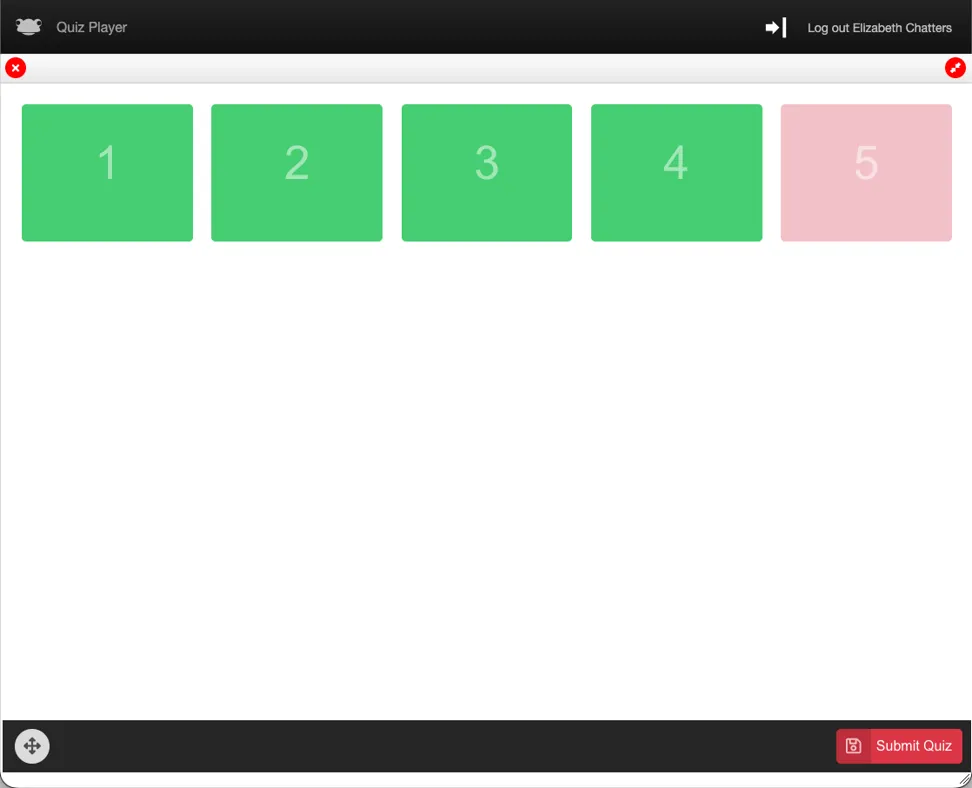
- JIRA# IALSTAB-1233 - When a user completes all questions in a quiz and the summary of correct and incorrect answers is displayed, the “Exit” button has been renamed to “Submit Quiz”. This makes it clearer that the button must be selected to submit the quiz attempt and ensure the results are written back to the Frog platform, allowing the user’s score to be recorded correctly and linked features, such as reports, to be updated.
Reporting Application
- JIRA# NFC-3596 - Improved the generation of reports to ensure that reports produced manually through the interface and those generated as “Scheduled” reports return consistent data when run at the same point in time.
- JIRA# NFC-3572 - When a “Scheduled” report has a recipient who is not a manager, selecting the report link from the email and navigating to the Frog platform will now allow the user to download both the PDF and CSV versions of the report. Previously, only the CSV version was available for download.
Training Calendar Widget
- JIRA# NFC-3619 - When using the Training Calendar widget on a site, the selected calendar view (Week or Month) is now retained for each user. The next time the user visits the Training Calendar, their previously selected view will be displayed.


Back to Community Home