

 Apprenticeships
 Construction
 Education Tech
 Engineering
 Franchise Networks
 Healthcare
 Legal Firms
 Logistics
 MATs
MATs Recruitment
 Retail
 Seasonal Staff
FrogLMS Community
Back to Widget Guides
AICC Player
AICC content is primarily intended for LMS providers that need to integrate with the NHS England e-Learning for healthcare (e-LfH) hub. It works in a similar way to SCORM content, but is launched through an embedded URL rather than being uploaded directly to the platform.
The aim of this guide is to introduce the ability to use AICC content in FrogLMS.
Click on the link below to download pdf version of the H5P Widget Guide:
This guide will help you with:
- AICC Player Widget Overview - What is a AICC Player Widget
- How-to - The process of adding AICC content to a module
- AICCPlayer Widget - Launching the AICC content
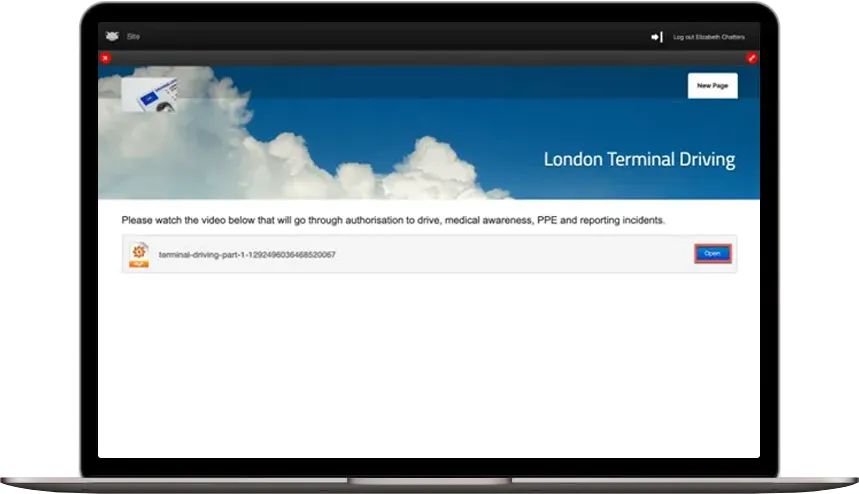

AICC Player Widget: Overview
Unlike SCORM content, AICC does not return a percentage score. Instead, once the learner reaches the end of the content, completion information is sent back to Frog and the activity is marked as Completed within the AICC Player.
This feature is available upon request, as additional setup and configuration costs apply. To
find out more about enabling this functionality, please contact the Customer Success Team
at customersuccess@frogeducation.com.
AICC Player Widget: How-to
We will now look at how to add AICC content to a module. Navigate to a module and enter edit mode, where you’ll see the new AICC Player widget available.
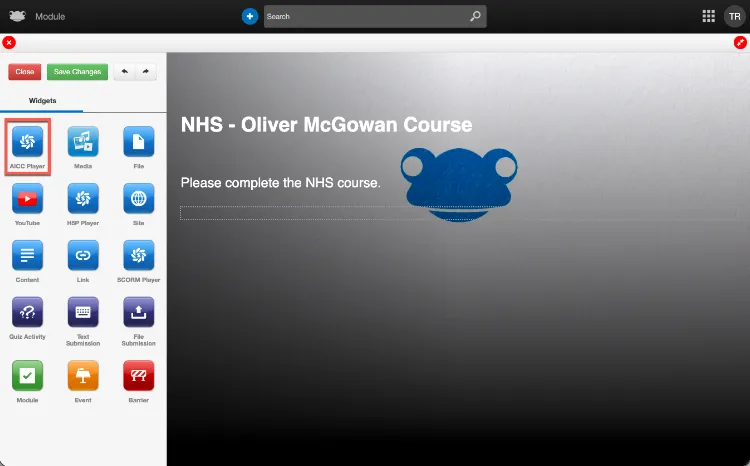
Drag and drop the AICC Player widget onto your module, then select the widget to view the available settings.
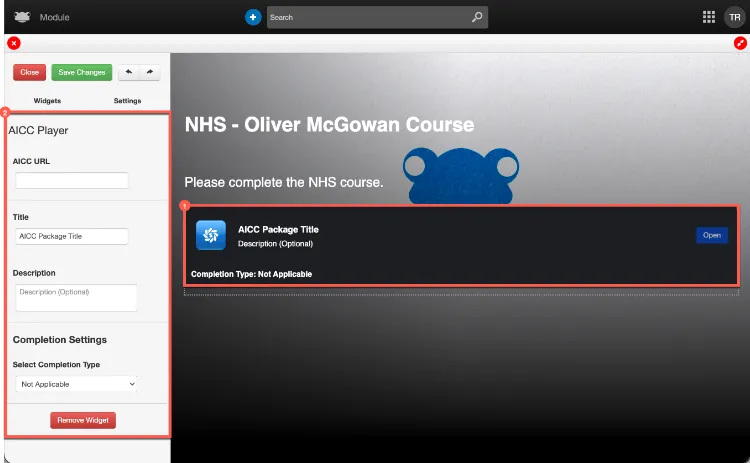
The first step is to enter the URL for your AICC content into the AICC URL field. In this example, we are using the following URL:
https://portal.elfh. org.uk/AICC/InitialiseRelay?CONTENT_URL=/AICC_Content/OMLDA_01_001
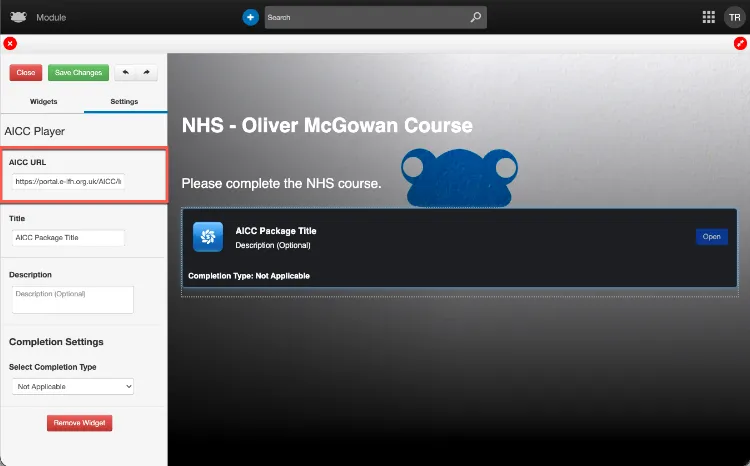
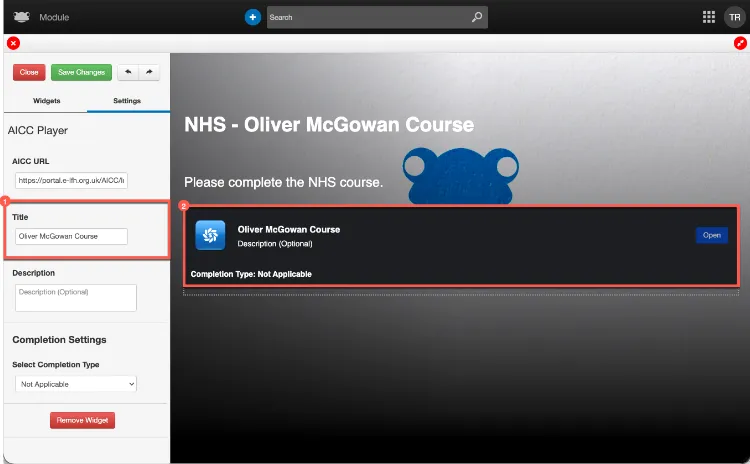
Next, enter a name for the AICC content that the learner will complete. In this example, we have entered Oliver McGowan Course into the Title field.
You will notice that the title is immediately reflected on the widget.
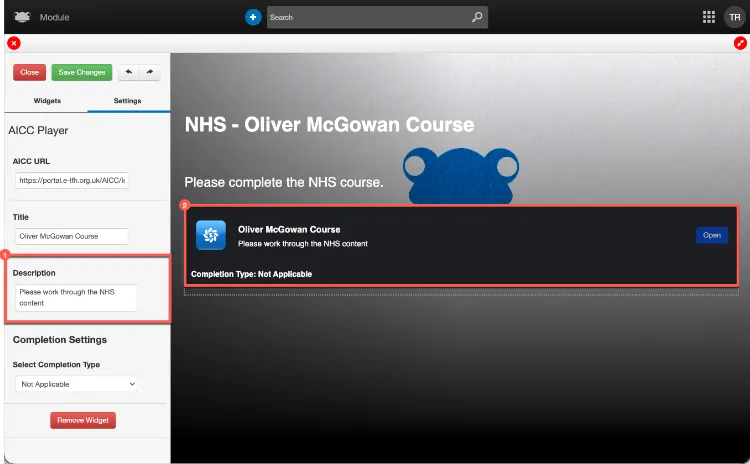
You can also provide additional information about the AICC content by entering it into the Description field. In this example, we have entered:
Please work through the NHS content
You will notice that the description is immediately reflected on the widget.
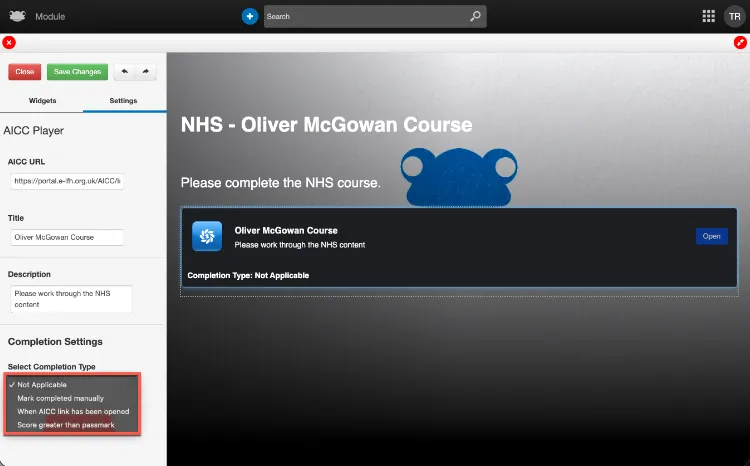
The last option within the widget settings allows you to choose how the activity will be
marked as completed for the learner. The standard completion settings below are available
and will work with AICC content:
- Not Applicable
- Mark completed manually
- When AICC link has been opened
- Score greater than passmark
NOTE:
For Score greater than passmark you will not be asked to enter a percentage. This is because AICC does not return a percentage score. Instead, once the learner reaches the end of the content, completion information is sent back to Frog and the activity is marked as Completed within the AICC Player.
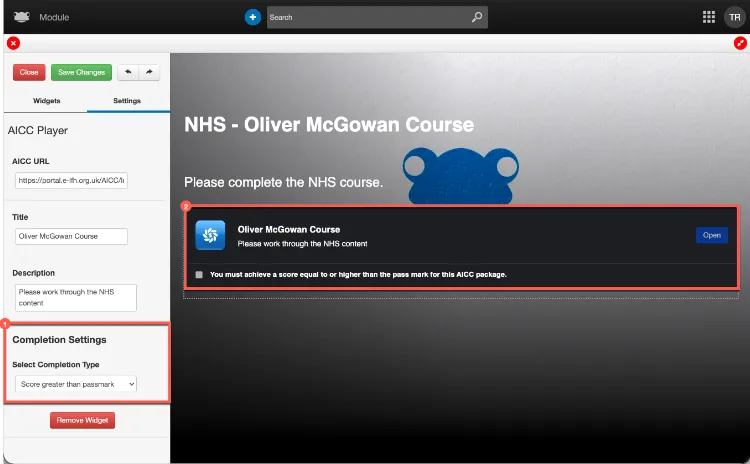
In this example, Score greater than passmark has been selected as the completion setting. The widget now displays the following message:
You must achieve a score equal to or higher than the pass mark for this AICC package.
AICC Player Widget: Launching the AICC Content
From a learner’s perspective, AICC content works in the same way as SCORM content. When viewing the module, the activity will display an Open button, which the learner can select to launch the AICC content.
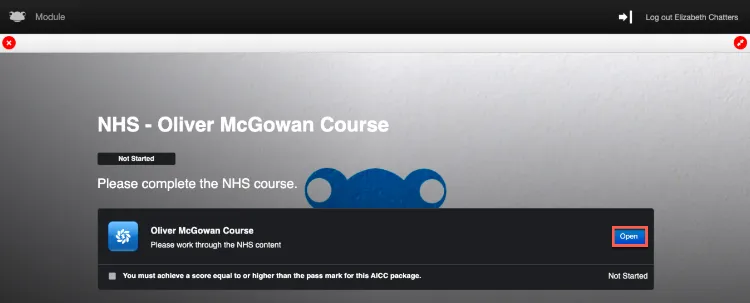
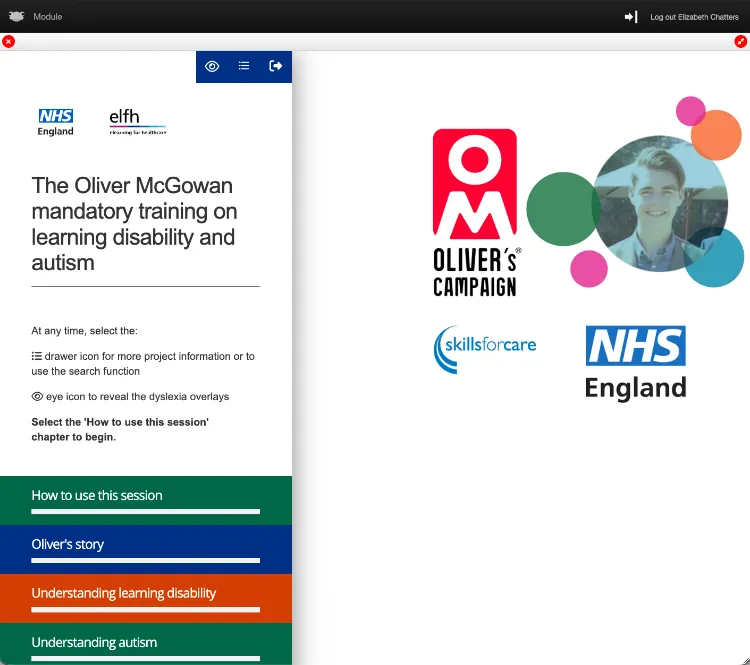
After selecting the Open button, a new window will open and the AICC content will load, ready for the learner to interact with.
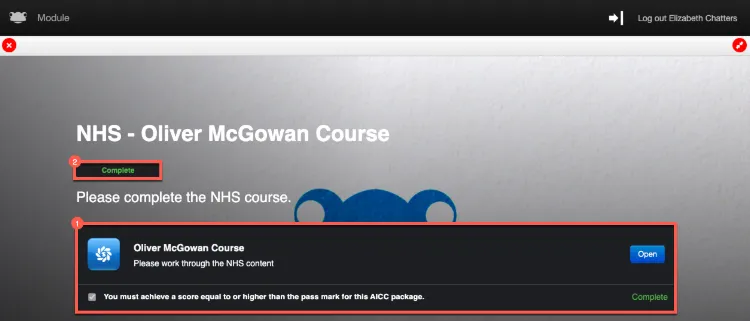
In this example, Elizabeth Chatters has completed the AICC content. After closing the content window, the activity is shown as Complete. As this is the only activity within the module, the overall module status is also updated to Complete.
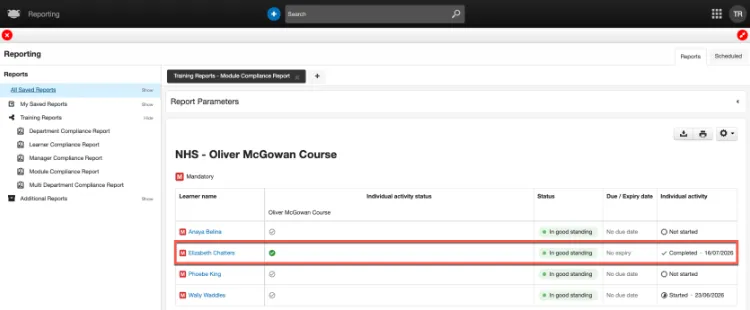
When the Score greater than passmark completion setting is used with the AICC Player widget, no percentage score is returned by the content. As a result, the Module Compliance Report displays a green tick to indicate that the activity has been completed, rather than showing a score.
In this example, Elizabeth Chatters has a green tick against the AICC content, and the overall module status is shown as Completed.