


 Apprenticeships
 Construction
 Education Tech
 Engineering
 Franchise Networks
 Healthcare
 Legal Firms
 Logistics
 MATs
MATs Recruitment
 Retail
 Seasonal Staff
FrogLMS Community
Back to Widget Guides
Catalogue

This widget will list for the Logged-in User all the modules that are available to them.
This guide will give you an overview of the following:


Widget: Tutorial
The Catalogue widget will list for the Logged-in User all the modules available to them. You will use a module’s Add to Catalogue settings to control this visibility.
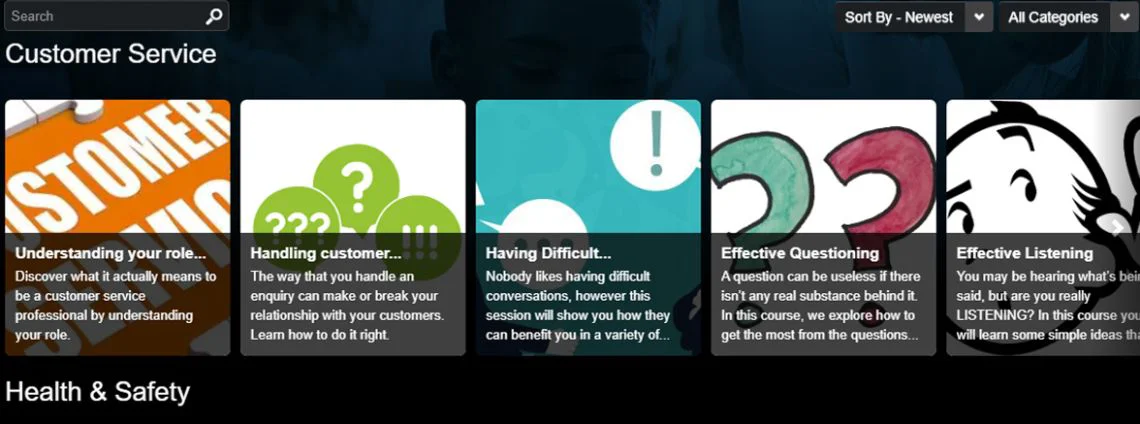
Learners can use the dropdowns and search box to filter the results displayed.
Widget Preferences
Scroll / Grid
The controls how each category of modules is displayed:
- Scroll creates a single line for each category (Netflix-style) which the Learner scrolls through left-right.
This is useful when you have lots of categories which Learners need to get to their focus. - Grid displays all modules for a category in a grid.
This view works well when you have lots of modules in few categories.
Show Title
The widget comes with a title you can set, but you may wish to control the formatting by using a text widget instead. When selected to show a title, an input box appears.
Group by Category
Categories will be listed alphabetically, but you may not wish to view the modules in this way, preferring to have the entire catalogue displayed together. This setting can be desirable when you are just starting to use Frog Courses and do not have a lot of modules published yet.
ADVANCED SETTINGS
To allow for quick changes to widgets, we often hide additional, more complicated settings in the Advanced sections of widgets.
Show Toolbar
This shows or hides the Search and Filter Dropdown. Hiding these by unchecking Show Toolbar gives you more control over what Learners see and can access.
Apply Category Filter
By default, all categories are listed, but if you select a category from the dropdown then click Add Filter the widget will list only the categories added here.
This can be used if you want to present separate pages for particular categories – such as a page for sales training, so Learners only see the Sales category on that particular page.
Apply Keyword filter
Much like the category filter, this option allows you to add keywords (available to add to a module in the Add to Category options). Type in the words you wish to use, with commas separating them and click Add Keyword.