


 Apprenticeships
 Construction
 Education Tech
 Engineering
 Franchise Networks
 Healthcare
 Legal Firms
 Logistics
 MATs
MATs Recruitment
 Retail
 Seasonal Staff
FrogLMS Community
Back to Widget Guides
Vimeo

The widget allows Vimeo videos to be easily embedded into a site / dashboard.
This guide will give you an overview of the following:


Widget: Tutorial
The widget allows Vimeo videos to be easily embedded into a site / dashboard. To embed a VImeo video, drag and drop the Vimeo widget onto a site. Select the widget to see the configuration settings available.
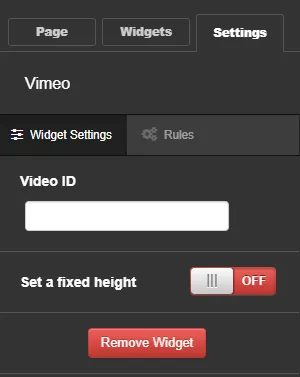
To embed a Vimeo video, users need to obtain the Vimeo ID. Therefore, in a separate browser navigate to the Vimeo website (https://vimeo.com) and complete a search to find the video to embed. Select a video, then in the browser URL copy the video ID. As an example the full URL for a selected video is https://vimeo.com/69677670. The video ID in this example that needs to be copied is will be 69677670.
The last of the configuration settings within the Vimeo widget is the ability to set a maximum height for the widget. By default, this option will be set to OFF, meaning the widget will auto adjust the height depending on the video.